
Running totals, cumulative balances, and nearest matches: formulas between rows that stay correct.
Here is a formula many of us wrote early on. Put transactions in a traditional spreadsheet, like Excel or Google Sheets, one per row, and keep a running balance:
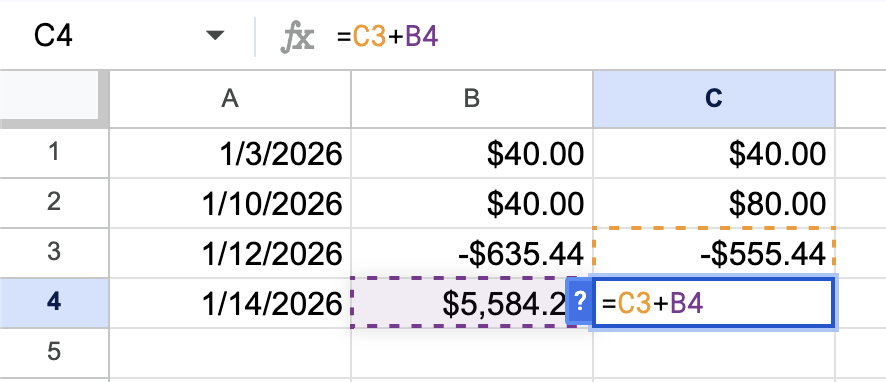
Copy the formula down, and it works. Each balance is the balance above it plus the amount on its own row.
Now you find a receipt from January 11 and insert a row for it, between rows 3 and 4. The new row has no formula, so you type one in, or copy it from above. But the balance below it now says =C3+B5. When the rows shifted, the reference was adjusted to keep pointing at the same cell, and that cell is no longer the row above. The new transaction is skipped without showing an error of any kind. The balance is just wrong from that row on.
Delete a row instead, and the formula below it becomes #REF!, and so does every balance after it.
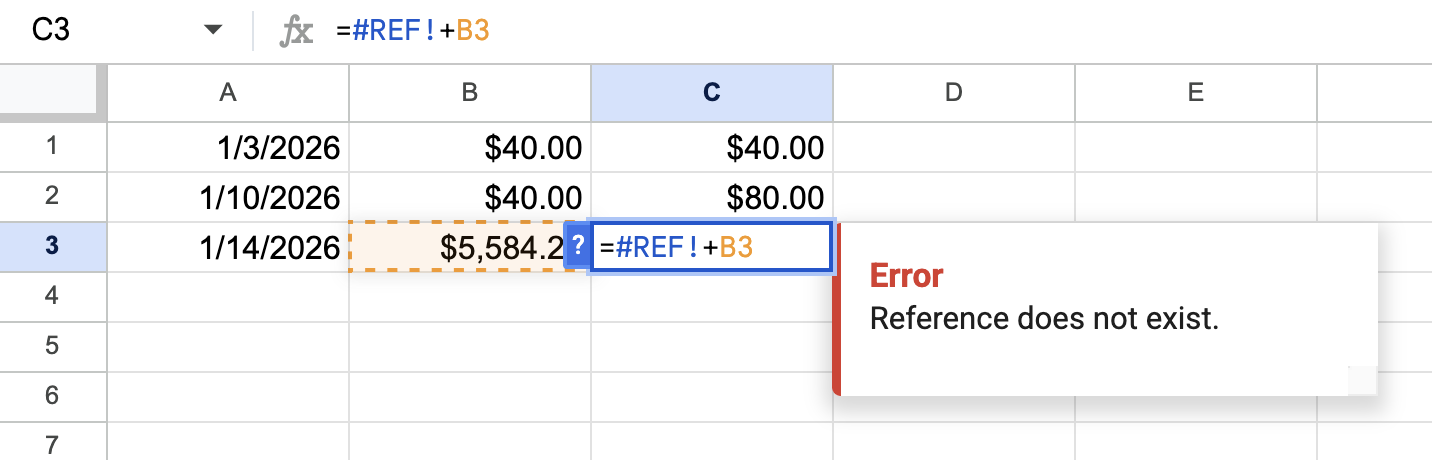
None of this is a bug. To a traditional spreadsheet, “the previous transaction” means “the cell above”. The two agree only as long as nobody rearranges anything.
Surely there’s a better way?
There is, if you know the tricks. Vertex42 suggests OFFSET(), or a relative named range, to point at “the cell above” in a way that survives edits. Exceljet suggests a single SCAN() formula for the whole column in Excel 365.
What about the spreadsheet-like tools with database foundations? In Airtable and Baserow, a formula can only see the record it’s in, and the same goes for NocoDB and Notion databases. People asking on their forums how to do a running total in Airtable or Baserow get pointed to scripts, or to linking each record to the previous one by hand.
So these tools avoid the problem by not having a “row above” at all. But the need is there: a running balance, the days since a patient’s last visit, the stock left after each shipment.
SQL has an answer: window functions. There’s LAG and LEAD for the previous and next row, or SUM(amount) OVER (PARTITION BY account ORDER BY date) for a running total. They also work, but they’re an advanced tool for developers writing queries, not for people working in a table.
The actual better way: PREVIOUS()

What we really mean by “the previous row” is “the previous transaction, by date”. So let’s say exactly that. In Grist, a running balance, or any cumulative total, looks like this:
prev_balance = PREVIOUS(rec, order_by="Date").Running_Balance or 0
prev_balance + $Amount
PREVIOUS(rec, order_by="Date") sorts the table by ‘Date’, finds the current record (rec), and returns the previous record. It’s a whole record (not just a cell), so .Running_Balance gets that record’s balance. The very first transaction has no previous one, so its balance comes out empty, and or 0 takes care of that.
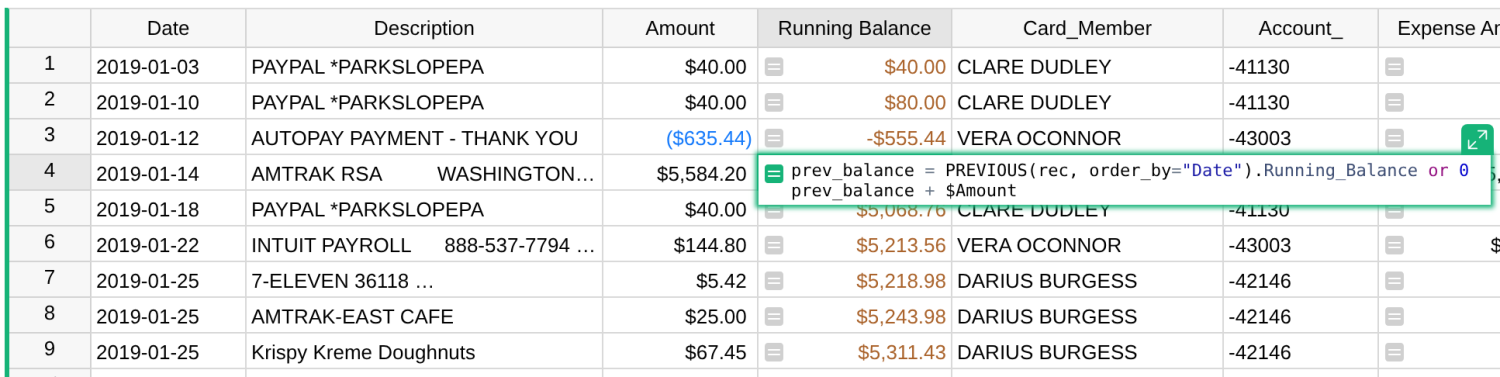
The ordering is in the formula, not in the view. Insert a transaction anywhere, and it falls into place by its date. Delete one, and the balances close up around it. Sort the table by ‘Amount’ or filter it, and each record still holds its balance by date, because that’s what we asked for.
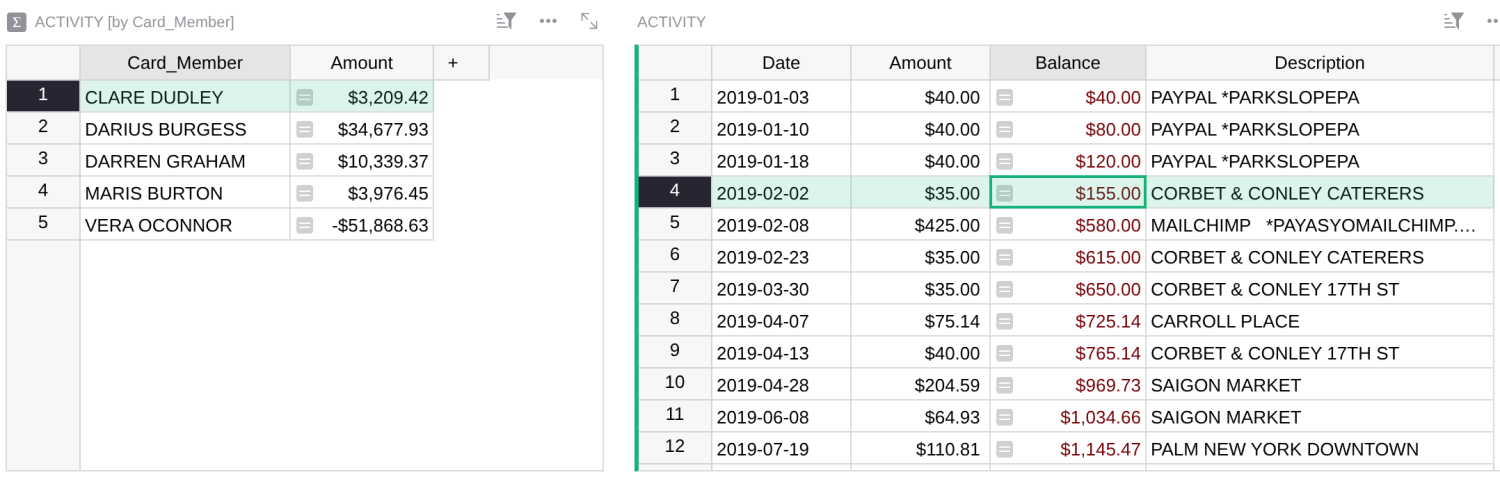
Now, a credit card account may have several cardholders, and each might want their own balance. You might be tempted to split the data into a table per person. Please don’t do that. Keep one table, and be specific:
prev_balance = PREVIOUS(rec, group_by="Card_Member", order_by="Date").Balance or 0
prev_balance + $Amount
PREVIOUS() now finds the previous transaction by date among those of the same card member.
And since the order lives in the formula (order_by), nothing stops you from having several running totals side by side: one for the whole account, one per card member, one that starts over each month. Each column keeps its own count. Add a view linked to card members and sorted by date, and you can pick a card member and see their transactions, with their balance adding up row by row.
PREVIOUS() has two siblings. NEXT() looks the other way, and RANK() gives each record its position in the order, so RANK(rec, order_by="-Amount") <= 10 marks the ten largest transactions. The help article covers all three in more detail.
Nearest match, latest record, and effective rate
Once a lookup knows about order, “previous” is just one thing you can ask of it.
Say people’s pay rates change over time, and you keep the history: Bertha earns $110 an hour starting August 30, 2019, and $125 starting March 24, 2020. A payroll entry from February 2020 needs the rate in effect on its date, which is the latest rate that started on or before that date:
rates = Rates.lookupRecords(Person=$Person, order_by="Rate_Start")
rates.find.le($Date).Hourly_Rate
lookupRecords() gets Bertha’s rates, sorted by start date. find.le() finds the last one that’s less than or equal to (that’s the le) the payroll date.
Nothing about this is specific to dates. Commission tiers work the same way: sell $5,000 and earn 7%, sell $10,000 and earn 10%, and so on.
rates = Commission_Rates.lookupRecords(order_by="Sales_Target")
rates.find.le($Sales_Amount).Commission_Rate
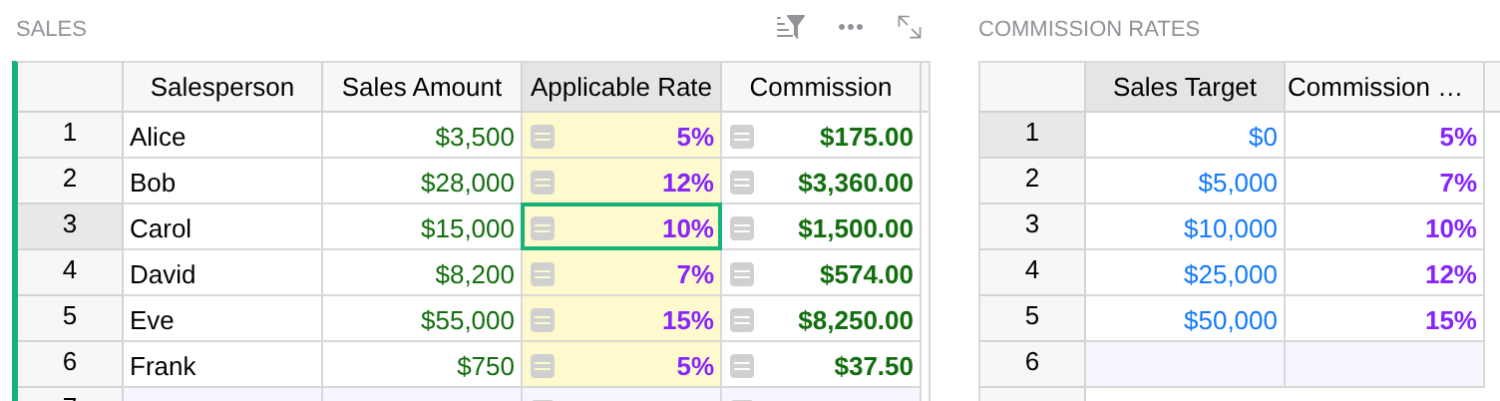
Excel and Google Sheets users know this as an approximate match: VLOOKUP() with TRUE as the last argument. Microsoft’s own docs say the first column then needs to be sorted, and if it isn’t, “the return value might be something you don’t expect.” No error, just a different answer. In Grist, the order is part of the formula: it sorts the tiers itself, no matter how you choose to present them on the screen.
The same two lines answer a whole family of everyday nearest-match (sometimes called “approximate match”) questions:
- the pay rate in effect on a given date
- the commission tier a sales total falls into
- the shipping rate for a package’s weight
- the tax bracket for an income
- the exchange rate on the day of a purchase
- the volume discount for an order size
And for the simplest question of all (the first or last record in a group) you don’t even need find(). Here’s a customer’s most recent order:
Orders.lookupOne(Customer=$id, order_by="-Date")
The minus sign means descending, so the first match is the latest.
The need for speed
Grist formulas are Python, so you could always write all of this by hand: get the records, loop over them, pick the right one. We should check what that costs.
A running total done by scanning, SUM(r.Amount for r in Transactions.all if r.Date <= $Date), looks at the whole table for every record. With 1,000 transactions, that’s a million steps. With 20,000, it’s 400 million.
On a test table of 20,000 transactions, PREVIOUS() computed the whole column of running balances in seconds. The scanning version was still running after five minutes.
The ordered lookups don’t scan. They keep the records sorted, and find what you ask for with a binary search, which is the fast way to do it.
All caught up
Remember when we added the receipt from January 11 and it broke the running total? In Grist, you can add it anywhere. It takes its place by date, and every balance after it recalculates. The new row’s balance is right, and so is each card member’s. Nobody has to copy a formula down, check an adjacent row, or fix an error.
That’s what you get from formulas that say what they mean: they update on their own, and they’re right every time.
For more details, see the help article Running totals, PREVIOUS, and ordered lookups. For a walkthrough of these examples, watch the webinar Advanced formulas with ordered lookups.

Dmitry Sagalovskiy, Co-founder and Head of Product
